





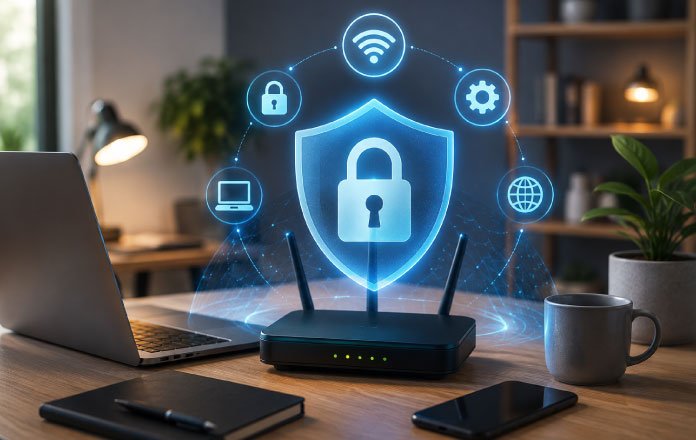
Working from home has made the internet connection at home just as important as the one in the office. We use the same Wi-Fi network to attend meetings, access company accounts, share files, make payments and handle personal information.
This also makes the home network an attractive target for cybercriminals. Wireless threats such as eavesdropping, spoofing, brute-force attacks and de-authentication attacks can put personal and business information at risk. According to the original article, cyber-attacks increased by 125% in 2021, showing how quickly the threat landscape was growing.
A home Wi-Fi network connects different devices to the internet through a wireless router. The router acts as the central point between the internet modem and devices such as laptops, smartphones and other Wi-Fi-enabled equipment.
The shift towards remote and teleworking after COVID-19 also increased the use of home wireless networks. Employees could continue working without visiting the office, but this also meant that companies were depending on networks they did not directly control.
So, how can you make your home Wi-Fi safer?
1. Change the Default Wi-Fi Name
The first thing you should do after setting up a wireless router is change its default network name.
Most router manufacturers provide a default Service Set Identifier, commonly called an SSID. This name is broadcast publicly so that nearby devices can identify the network.
Leaving the default name unchanged can provide attackers with information about the router or its manufacturer. This can make the network easier to target.



Changing the SSID does not make your network completely secure, but it is a simple first step. If you use your home Wi-Fi for office work, online banking or other sensitive activities, there is little reason to keep the manufacturer’s default network name.
2. Create a Strong Wi-Fi Password
A weak Wi-Fi password can make your entire network vulnerable.
Home routers generally come with a preset password. Someone familiar with the router manufacturer may be able to work out or decode commonly used default credentials.
For remote workers, this matters even more. Your home network may carry company information, official account credentials, financial transactions and personal data.
Replace the default password with something much stronger. The original article recommends using a password of at least 20 characters containing a combination of letters, numbers and symbols.
Avoid passwords that are easy to guess. A longer and more complex password makes it considerably harder for attackers to crack the network.
3. Turn On Wi-Fi Encryption
Encryption is another important layer of protection for a wireless network.
Many routers provide encryption, but the feature may not always be enabled by default. Check your router’s security settings and make sure an appropriate encryption method is active.
The original article identifies WPA2 as an effective encryption option available on many home wireless routers.
Why does encryption matter?
When information travels through a wireless network, encryption helps protect it from unauthorized access. This becomes particularly important when you are sending or receiving sensitive company and personal information while working remotely.
A secure password is useful, but combining it with network encryption gives your Wi-Fi another important layer of protection.
4. Keep Your Router Software Updated
Your router is not something you should set up once and then forget about.
Older router software can contain security weaknesses. Attackers may use these weaknesses to interfere with wireless communications or intercept and manipulate data.
Wireless spoofing is one example. In this type of attack, a criminal can position themselves between the wireless user and the legitimate access point, potentially allowing data to be intercepted or manipulated.
Keeping the router software updated can reduce this risk. Manufacturers release newer software versions with security improvements and protection against known vulnerabilities.
Make it a habit to check whether your router has an available software update. A few minutes spent on an update can help avoid much bigger security problems later.
5. Turn Off Remote Management, WPS and UPnP
Modern routers come with several convenient features. However, convenience and security do not always go hand in hand.
Remote management allows you to access and change router settings through the internet. While useful in some situations, leaving this feature enabled can create another possible route for unauthorized access.
WPS, or Wi-Fi Protected Setup, makes it easier to connect devices without entering the normal Wi-Fi password. UPnP, or Universal Plug and Play, allows devices on the network to discover one another automatically.
These features can be useful, but they can also weaken the security of a home wireless network when they are not required. The original article recommends turning them off to improve protection.
There are a few additional precautions worth taking. You can create a guest network for visitors instead of allowing their devices onto your main network. Turning on the network firewall can provide another layer of defence. It is also good practice to log out of the router’s administrator account after making changes.
A Safer Home Network Starts With Simple Steps
You do not need to be a networking expert to improve the security of your home Wi-Fi.
Start with the basics: change the default network name, create a strong password, enable encryption, keep your router software updated and turn off features you do not need.
Remote work has made home networks an important part of professional life. The more business and personal information that passes through your Wi-Fi connection, the more important it becomes to protect it.
A few simple changes to your router settings can reduce unnecessary risks and give you a safer environment for working from home.